

VPN on Windows
This guide follows the Windows 11 example in the screenshots. Labels and option locations may vary between Windows versions. Screenshots show the Portuguese interface with environment details hidden; use the values provided for your connection.
Before you start
VPN not enabled yet? Follow Create the VPN first to obtain the connection IP and pre-shared key and register your user.
VPN must be enabled in your environment and your user must be authorized. Have these details ready:
| Information | What to use |
|---|---|
| VPN server | Public IP address or hostname provided for your VPN. |
| Pre-shared key (PSK) | IPsec key provided for the connection. |
| VPN username and password | Credentials authorized for the VPN service. |
| Destination network | Subnet and private address of the resource you need to access. |
Do not assume VPN credentials are the same as your cloud console credentials. Confirm the details with the team responsible for your environment. The cloud.tsdata.com.br address is the console; use it as the VPN server only if explicitly instructed by that team.
1. Open VPN settings
In Windows, open Settings → Network & internet → VPN.
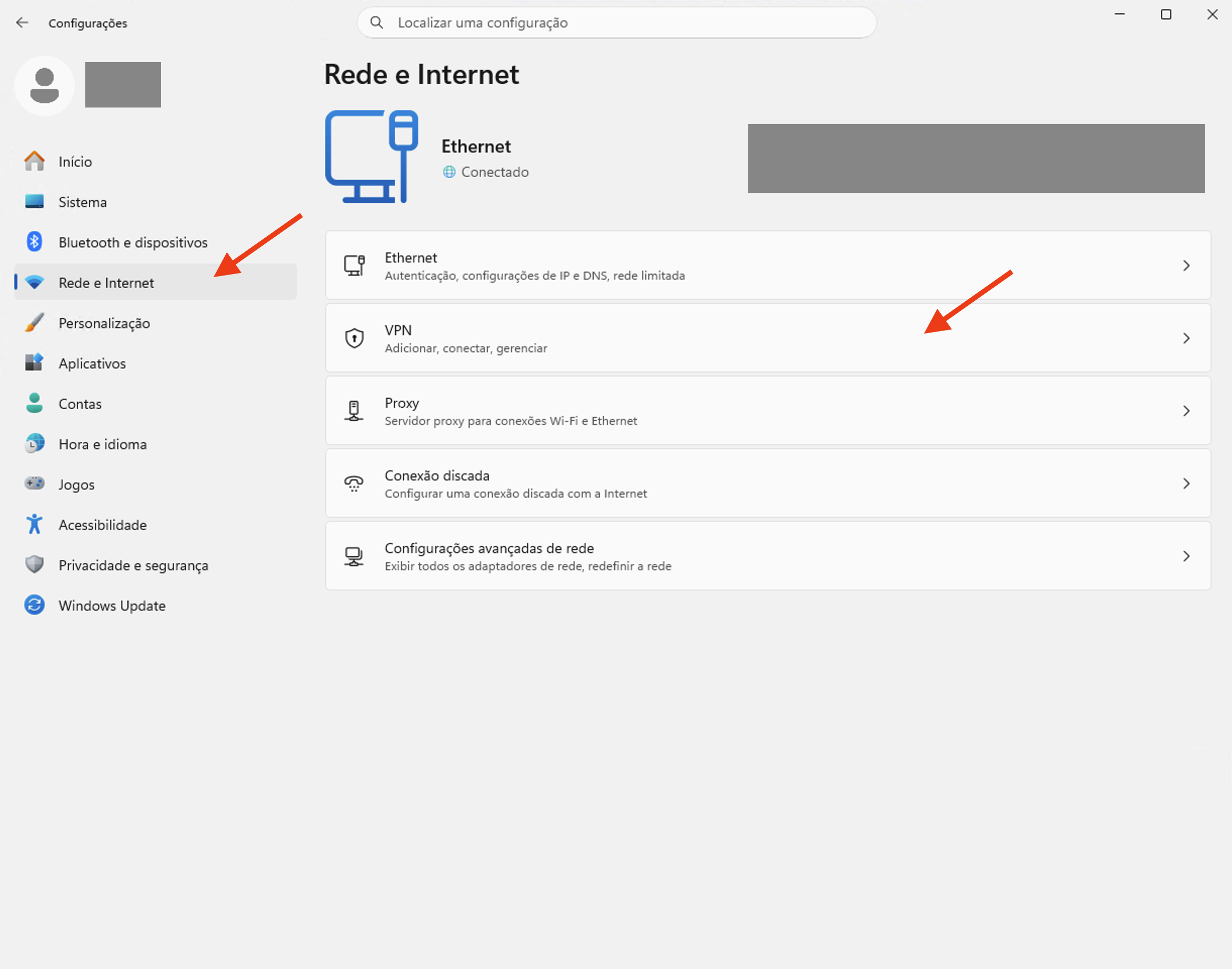
Click Add VPN.
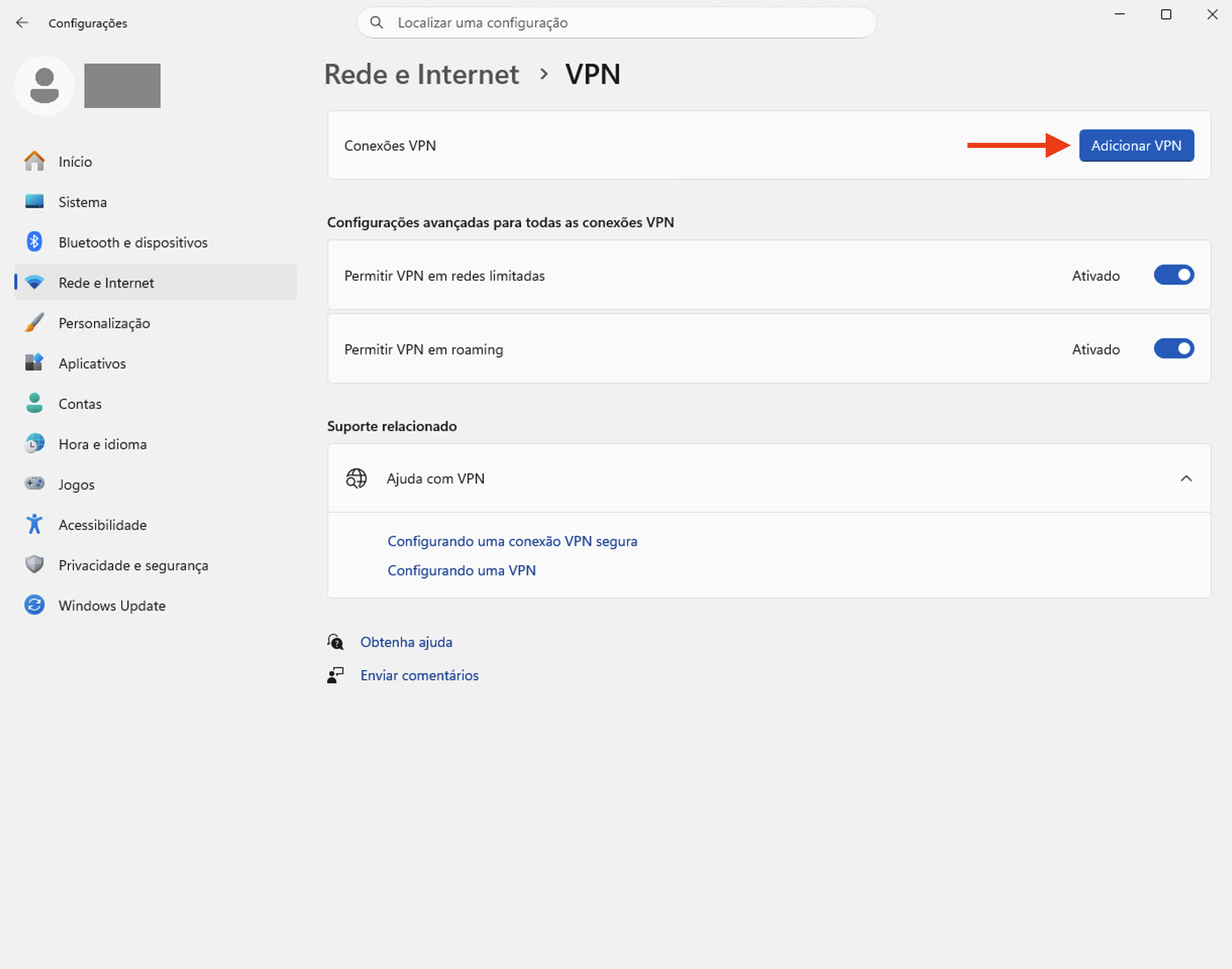
2. Create the connection
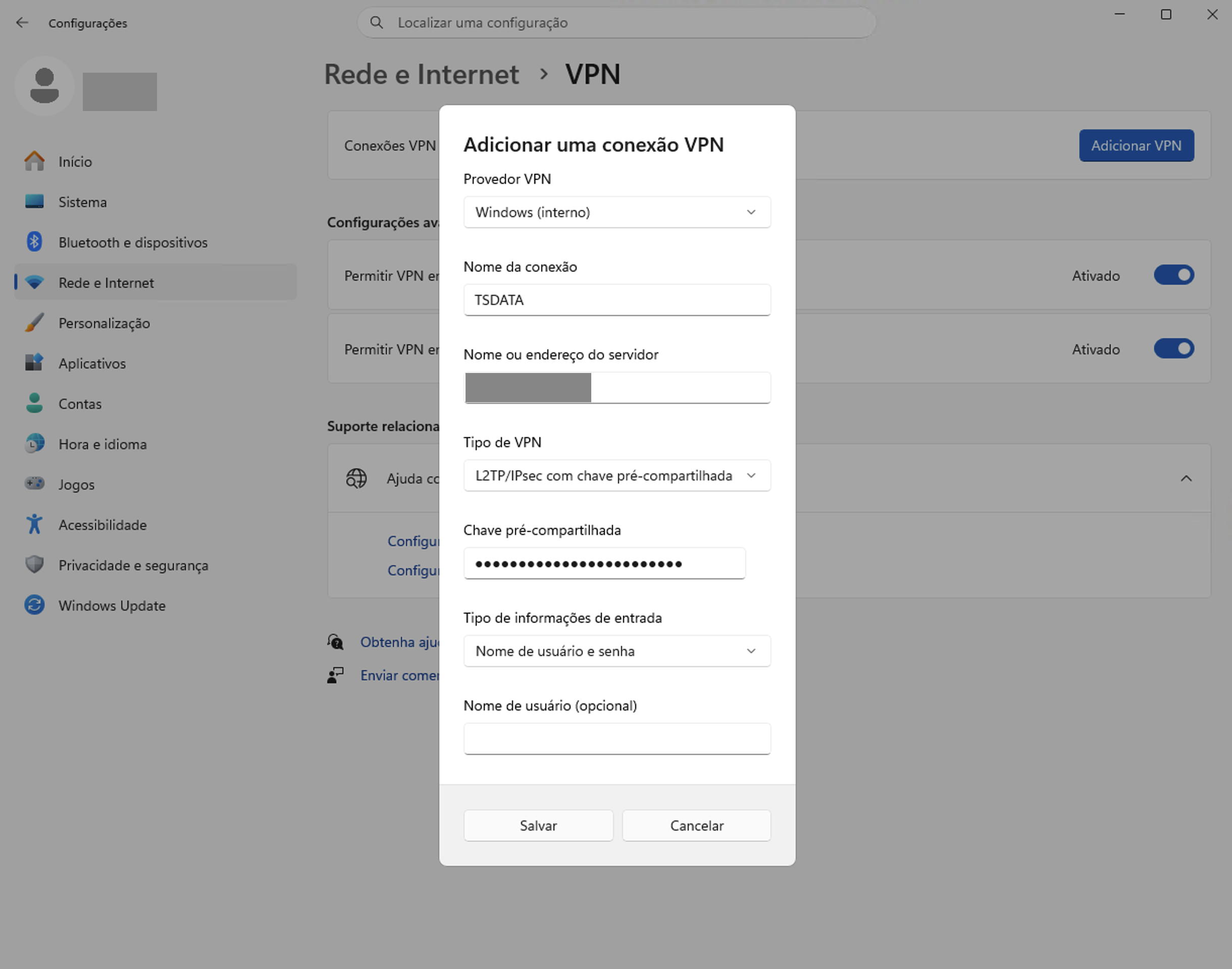
Complete the form as follows:
| Field | Value |
|---|---|
| VPN provider | Windows (built-in). |
| Connection name | TSDATA (used in this example). |
| Server name or address | VPN server provided for your environment. |
| VPN type | L2TP/IPsec with pre-shared key. |
| Pre-shared key | PSK provided for your VPN. |
| Type of sign-in info | User name and password. |
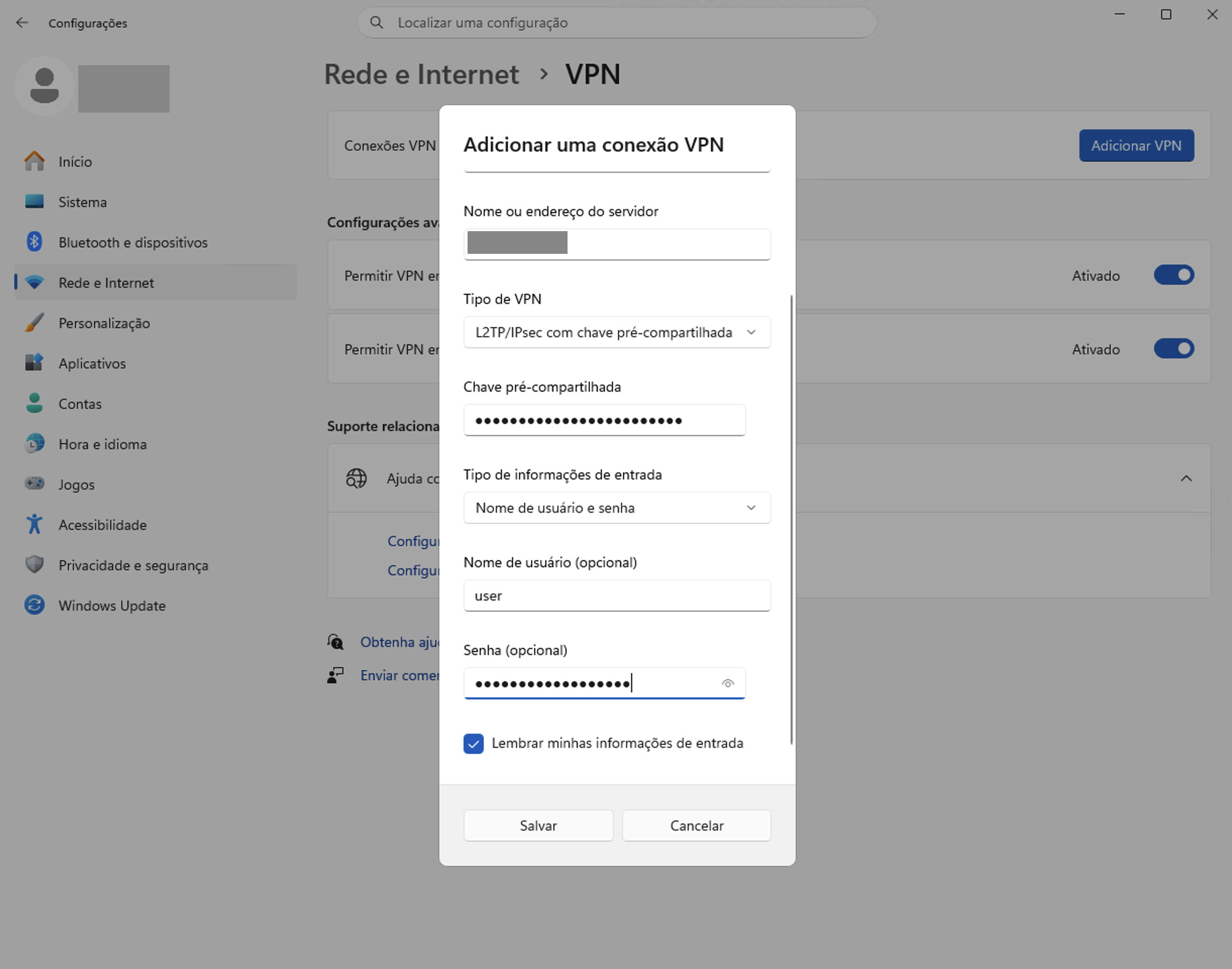
Enter your VPN User name and Password. The user value in the screenshot is only an example. If you leave these fields blank, enter your credentials when prompted during connection.
Remember my sign-in info is optional. Select it only on an authorized computer for your personal use. Click Save.
3. Adjust connection security
With the VPN disconnected, open the TSDATA adapter properties. You can use More VPN properties → Edit when available on the connection settings page.
Alternatively, press Win + R, type ncpa.cpl and press Enter. In Network Connections, right-click TSDATA and select Properties.
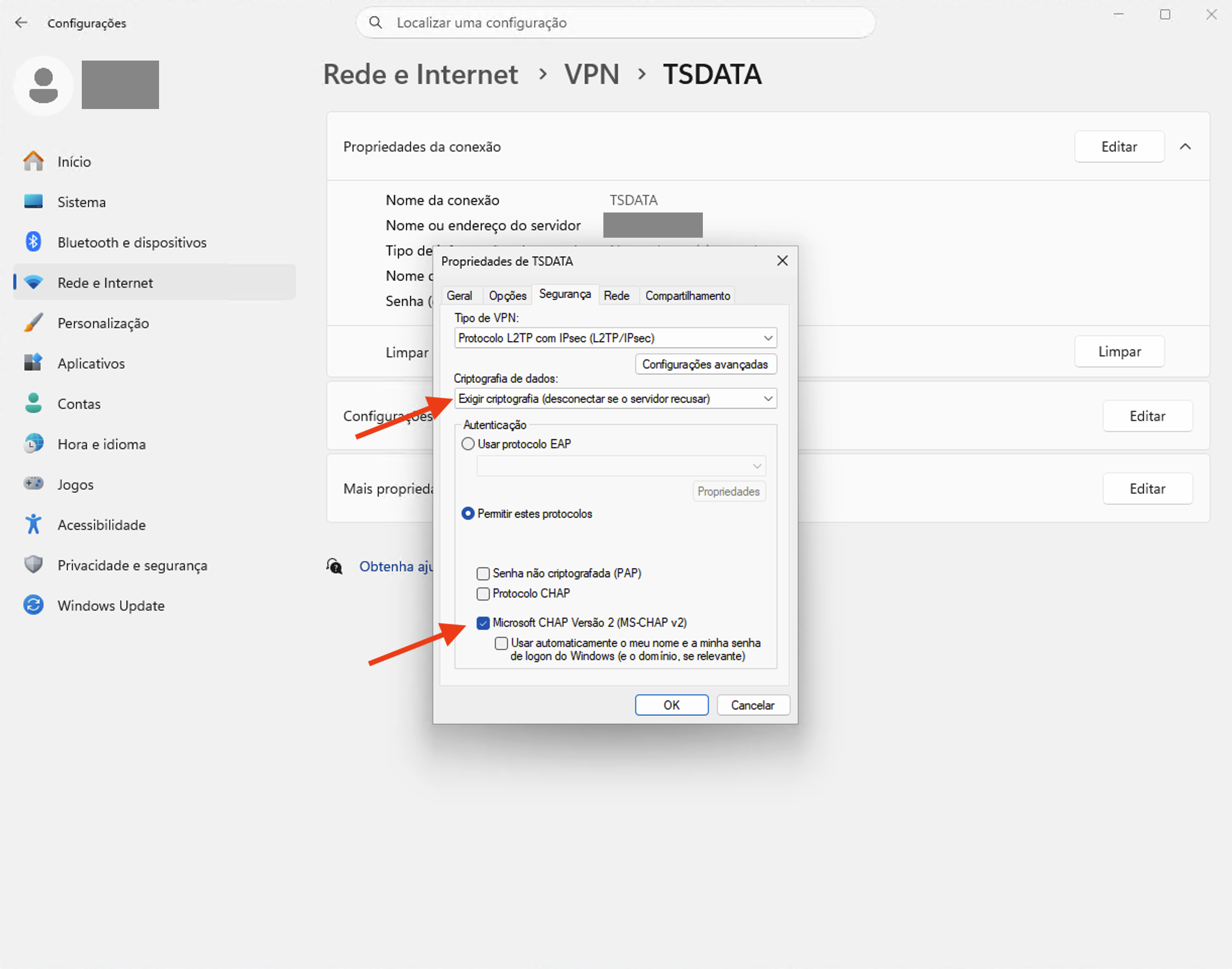
On the Security tab, configure:
- Type of VPN: Layer 2 Tunneling Protocol with IPsec (L2TP/IPsec).
- Data encryption: Require encryption (disconnect if server declines).
- Under Authentication, select Allow these protocols.
- Select Microsoft CHAP Version 2 (MS-CHAP v2).
- Leave PAP, CHAP and Automatically use my Windows logon name and password unchecked, as shown.
4. Configure IPv4
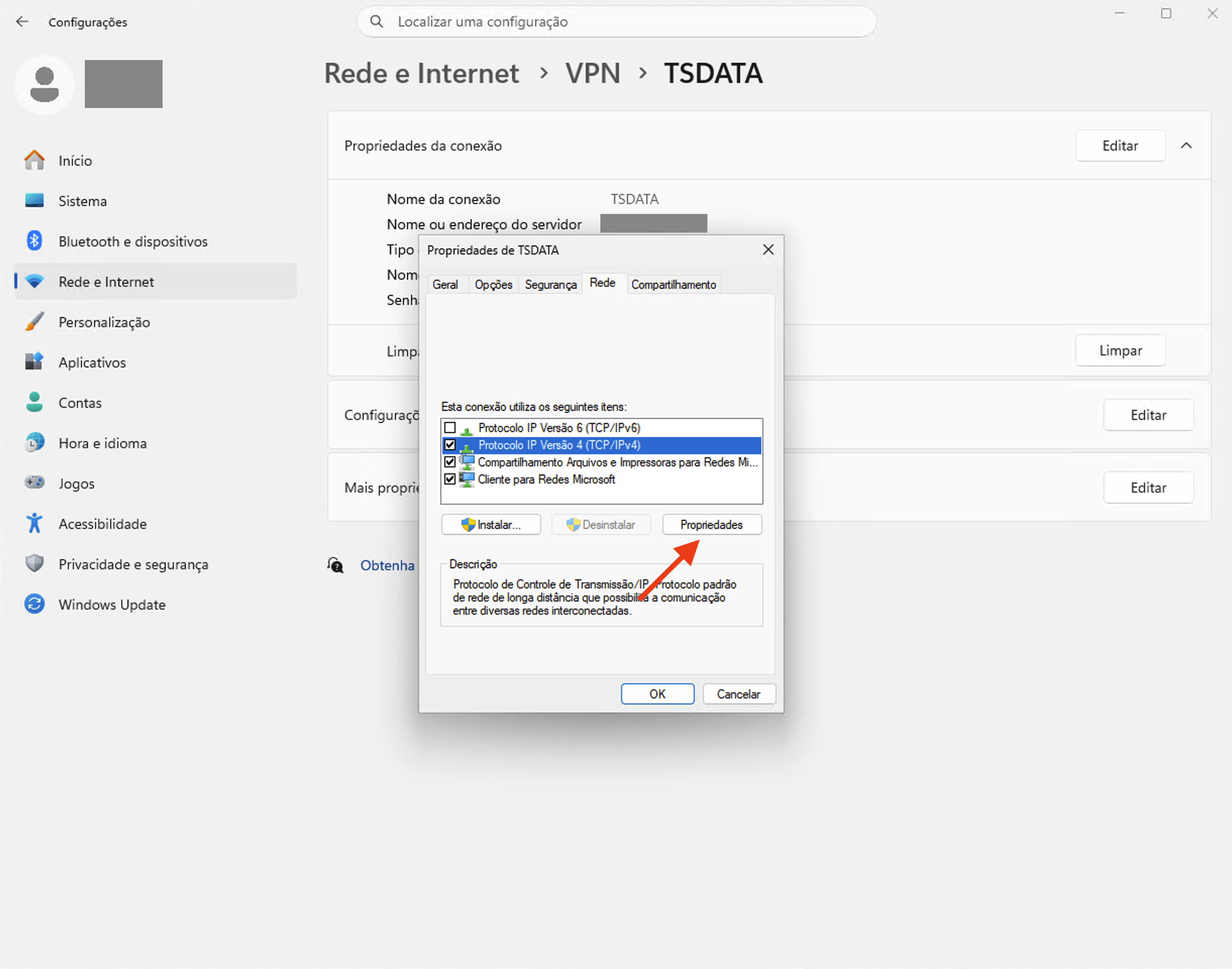
On the Networking tab, select Internet Protocol Version 4 (TCP/IPv4) and click Properties. Keep IPv4 enabled. You do not need to reproduce changes to the other listed components for this step.
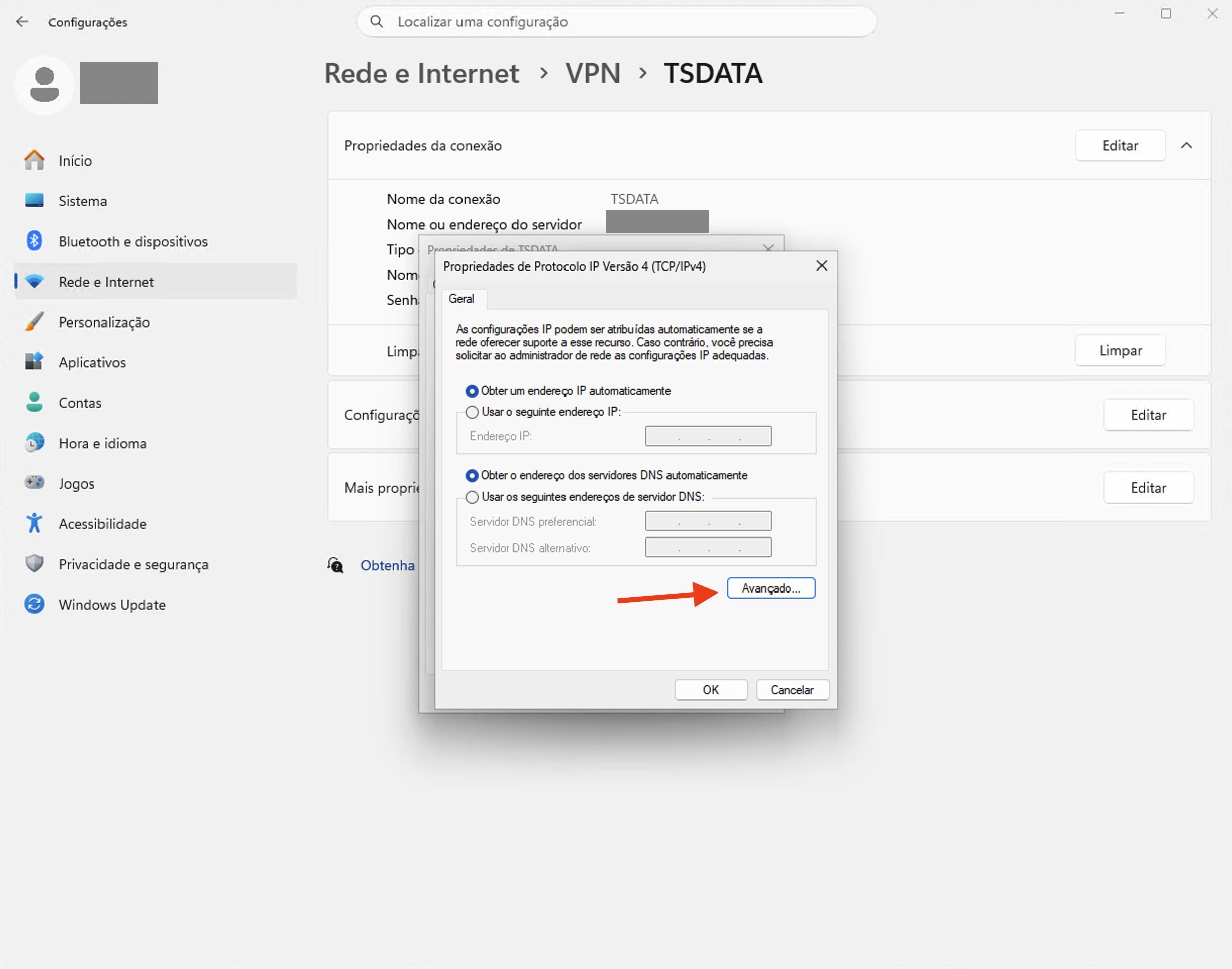
Keep Obtain an IP address automatically and Obtain DNS server address automatically selected, as in the example. Click Advanced….
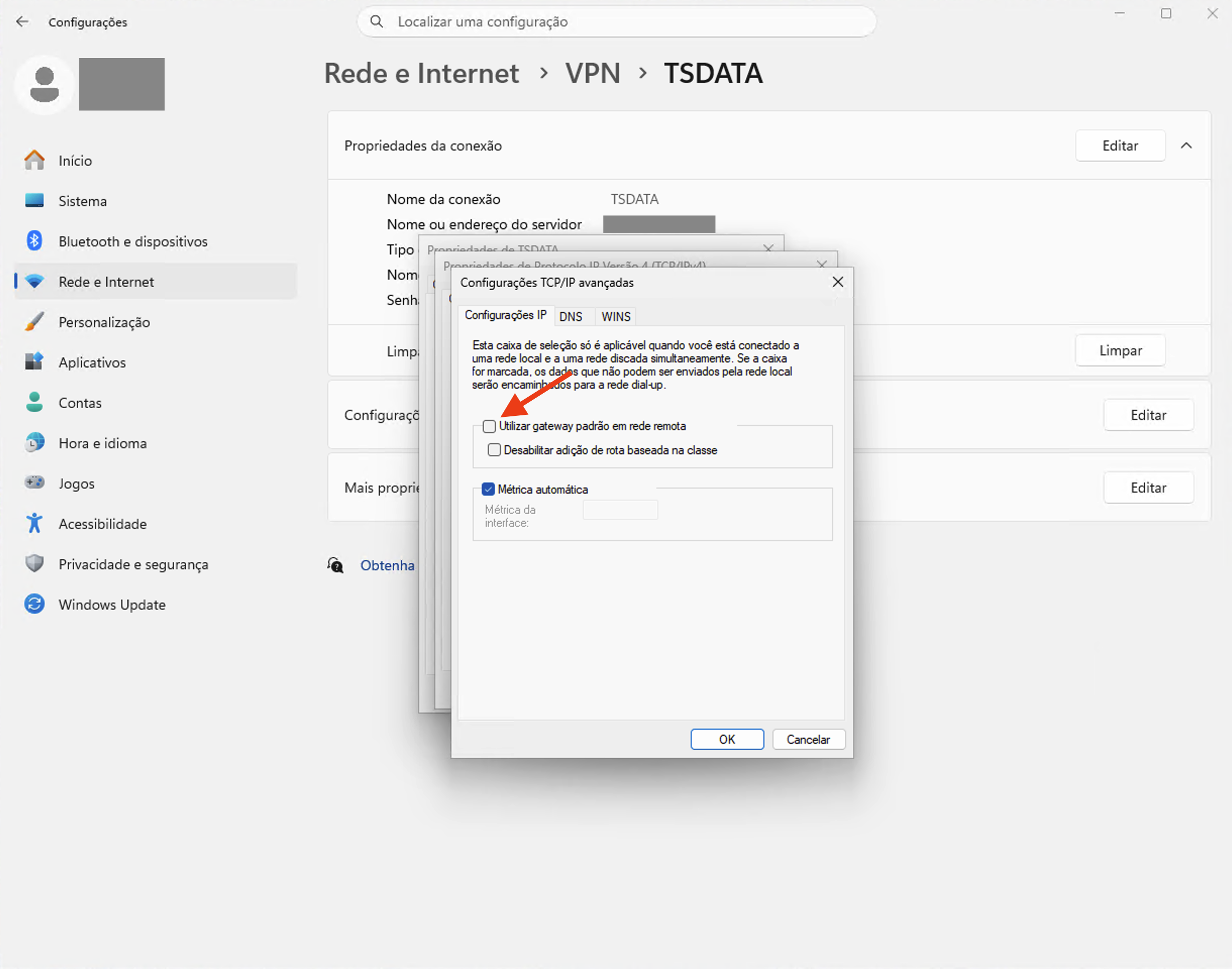
On the IP Settings tab:
- Clear Use default gateway on remote network.
- Keep Automatic metric selected.
- Click OK in the open dialogs to save the changes.
Cloud access and internet browsing
This example does not use the VPN as the default IPv4 gateway. Routes must direct the destination subnets through the VPN to reach your cloud. Clearing the gateway option does not, by itself, create all routes your environment needs. If a private network is unreachable, ask the responsible team for the correct prefixes and routes.
This routing model is called split tunneling: routes determine which destinations use the VPN. See Microsoft's VPN routing documentation.
5. Connect and verify access
Return to Settings → Network & internet → VPN, select TSDATA and click Connect. Enter your VPN credentials if prompted.
Once Windows displays Connected:
- Access an authorized service using the private address supplied by your team, such as an internal application or a remote connection to your virtual machine.
- Check that normal internet browsing still works.
- When finished, select Disconnect on the TSDATA connection.
Connected confirms the tunnel is established. Access to each resource also depends on routes, network rules and destination service permissions.
Common issues
| Symptom | What to check |
|---|---|
| Connection cannot be established | Server address, L2TP/IPsec type, PSK and VPN availability in the environment. |
| Authentication error | VPN username and password, extra spaces and MS-CHAP v2 selection. |
| VPN connected but private resource unreachable | Routes to the destination network, possible overlapping subnets with your local network and resource access rules. |
| IP access works but hostname access fails | Internal DNS configuration and resolution, with the responsible team. |
| Internet browsing fails after connecting | Remote gateway option, routes and connection DNS settings. |
When requesting help, include the error message or code, time of the attempt and the step where it failed. Do not send passwords or the pre-shared key.
For general interface guidance, see Connect to a VPN in Windows — Microsoft.