
First sign-in
::: important Two-factor authentication is required You must set up two-factor authentication (2FA) on your first login. Your initial sign-in is only complete after this step. The console will also request an authentication code on subsequent logins. :::
Before you start
Have the following three credentials ready:
| Credential | How to use it |
|---|---|
| Username | Enter the username provided for your account. |
| Password | Enter the password provided, respecting uppercase and lowercase letters and special characters. |
| Domain | Enter the domain value supplied with your username and password. |
What should I enter in Domain?
Use the exact value provided with your credentials. Do not replace it with the console address or your company's website domain.
How to sign in
1. Open the official console
In your browser, open https://cloud.tsdata.com.br.
Check the address before entering your credentials.
2. Enter your credentials
On the Portal login tab, fill in the fields using the credentials you received:
- Username: your username.
- Password: your password.
- Domain: the domain provided with your credentials.
When copying and pasting, check for extra spaces at the beginning or end of each value.
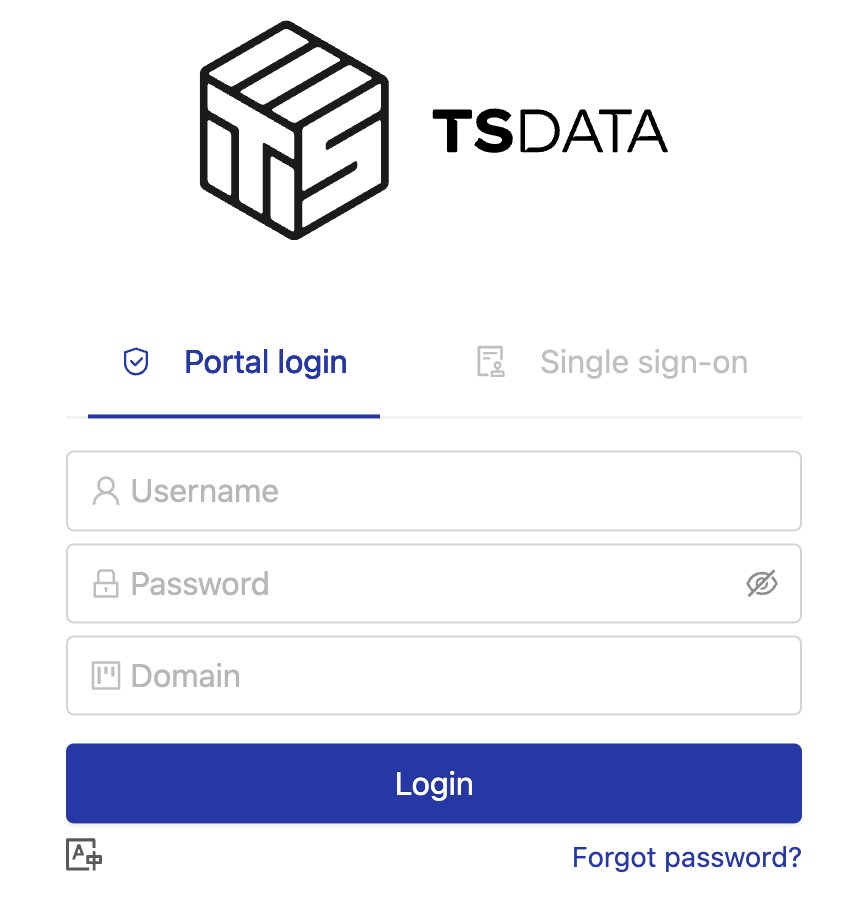
3. Click Login
Click Login. On your first sign-in, the console will display the Two Factor Authentication setup screen. Continue with the steps below.
Set up two-factor authentication
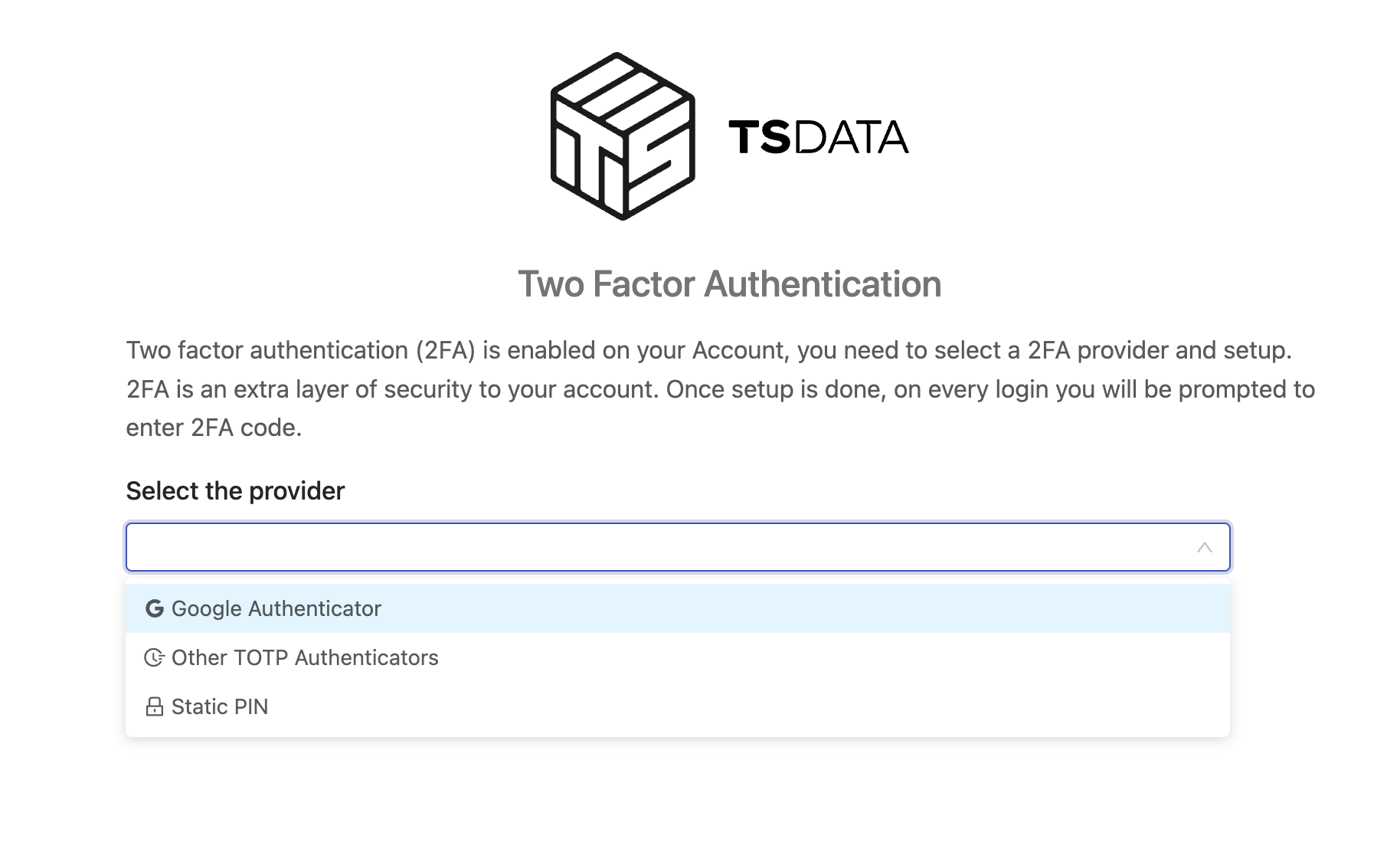
4. Select the provider
On the Two Factor Authentication screen, open Select the provider and choose your authentication method.
The screenshot below shows Google Authenticator, Other TOTP Authenticators and Static PIN. Use the method specified by the team responsible for your access.
5. Complete the setup
Follow the console instructions for your selected provider and complete the requested confirmation. This step is required to finish your first sign-in.
Protect your authentication details
Do not share authentication codes, PINs, setup QR codes or secret keys. Keep these details out of support tickets and screenshots shared with others.
Subsequent logins
After setting up two-factor authentication, enter your Username, Password and Domain, then provide the code from your configured method when prompted.
Sign-in issues
Username, password or domain not recognized
Check all three fields against the credentials you received. Check whether Caps Lock is enabled and remove any extra spaces.
If the issue persists, contact the team that provided your credentials and report the error message without sending your password.
I did not receive or have lost my credentials
Contact the team responsible for your TSDATA Cloud access. Specify which credential is missing: username, password or domain.
I cannot complete 2FA or have lost access to my configured method
Contact the team responsible for your TSDATA Cloud access for guidance. Describe the step where the issue occurred without sending passwords, codes, PINs or secret keys.
The console does not open
Confirm that you are using https://cloud.tsdata.com.br and that your internet connection is working. If the issue persists, note the browser's error message so you can report it to the team responsible for your access.
Keep your account secure
- Store your credentials securely, preferably in a password manager.
- Do not share your password in support tickets or messages.
- Hide sensitive information in screenshots used to report issues.
- Sign out when you finish using the console on a shared computer.